

Home Page Features
Various functions are disabled when the vehicle is moving.
Press the Now Playing screen button to display the active source page. The sources available are AM, FM, XM (if equipped), CD, USB/iPod, and AUX.
See AM-FM Radio , Satellite Radio , and Auxiliary Devices .
Press the Phone screen button to display the Phone main page. See Bluetooth (Infotainment Controls) or Bluetooth (Overview) or Bluetooth (Voice Recognition) .
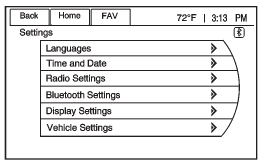
Press the Config screen button to display the Config main page. From this display, you can adjust features such as time and date, radio, Bluetooth, vehicle, and display.
Press the Tone screen button to display the Tone main page. Adjust the tone and speakers by pressing the screen buttons to change the levels of sound for treble, midrange, bass, fade, and balance. See AM-FM Radio .
Press the FM screen button to display the FM main page and play the current or last tuned FM station. See AM-FM Radio .
Press the AM screen button to display the AM main page and play the current or last tuned AM station. See AM-FM Radio .
Press the XM screen button (if equipped) to display the XM main page and play the current or last tuned XM channel. See AM-FM Radio and Satellite Radio .
Press the CD screen button to display the CD main page and play the current or last CD track selected. See CD Player .
Press the USB screen button to display the USB main page and play the current or last track selected. See Auxiliary Devices . Press the AUX screen button to access any connected auxiliary device. See Auxiliary Devices .
See also:
Climate Control Influence on eAssist Operation and Fuel Economy (If
Equipped)
The climate control system is
dependent upon other vehicle
systems for heat and power input.
Certain climate control settings can
lead to higher fuel usage and/or
fewer auto stops.
The follo ...
When the Light Is On Steady
This indicates that one or more of the tires are significantly underinflated.
A Driver Information Center (DIC) tire pressure message may also display. See
Vehicle Messages for more informati ...
Bulb Replacement
For the proper type of replacement bulbs, see Replacement Bulbs .
For any bulb-changing procedure not listed in this section, contact your dealer. ...